

- Lifecycle policies: System-managed policies that track technology lifecycle events.
- Governance policies: Policies that let you define and enforce standards for your environment.
Policy types
Lifecycle policies
Lifecycle policies track events such as end-of-life dates, version currency, certificate expiration, and compatibility windows. These policies are configured and maintained by Draftt.
Lifecycle policy statuses follow a standard progression: Supported, Impending, Outdated, and Deprecated. Each status has a criticality level that determines how it appears in dashboards and reports.
System policies are managed by Draftt and cannot currently be edited.
Governance policies
Governance policies let you define your own standards. You determine which resources the policy evaluates and define the rules for assigning statuses. Draftt evaluates every matching resource during each scan cycle. Use governance policies to enforce standards related to configuration, compatibility, golden configurations, tagging, resource-specific settings, and other conditions available in your inventory data.How policies work
Every policy follows the same evaluation loop:- Scope: A query determines which resources the policy evaluates. Without a query, the policy evaluates all resources of the selected type.
- Evaluate: Draftt checks each resource against the configured status assignments.
- Assign: The first matching status is assigned. If no rule matches, the resource receives the policy’s default status.
- Surface: Policy results appear on the Policies page, in Dashboard breakdowns, and in Inventory filters and views.
Anatomy of a governance policy
Each governance policy includes status assignments, a default status, status assignment rules, and an optional resource scope.Status assignments
Governance policies support two statuses:
You define the conditions for each status and choose one as the default status.
Default status
The default status is assigned when a resource does not match any configured status assignment rule. For example, a policy can use Non-Compliant as the default status and assign Compliant when a resource meets the required conditions.Status assignment rules
For Compliant or Non-Compliant, you can add one or more condition blocks. Each block can contain:- Prerequisites: Optional filters that determine whether Draftt evaluates the block for a resource. For example, a condition that checks
autoMinorUpgradecan use a prerequisite to limit evaluation to RDS resources. - Conditions: Field, operator, and value combinations that determine whether a resource matches the block.
Resource scope (query)
The optional resource scope determines which resources the policy evaluates. You configure it during the Query Rules step of policy creation. Leave the query empty to evaluate all resources of the selected resource type.Create a governance policy
Guided Policy Creation walks you through the information required to create a policy, from selecting a starting point to reviewing the completed configuration. Open Policies from the main navigation. The page displays Draftt’s system policies and any governance policies already created for your environment. Select Add New Policy to begin.1. Choose a creation method
Choose how you want to create the policy: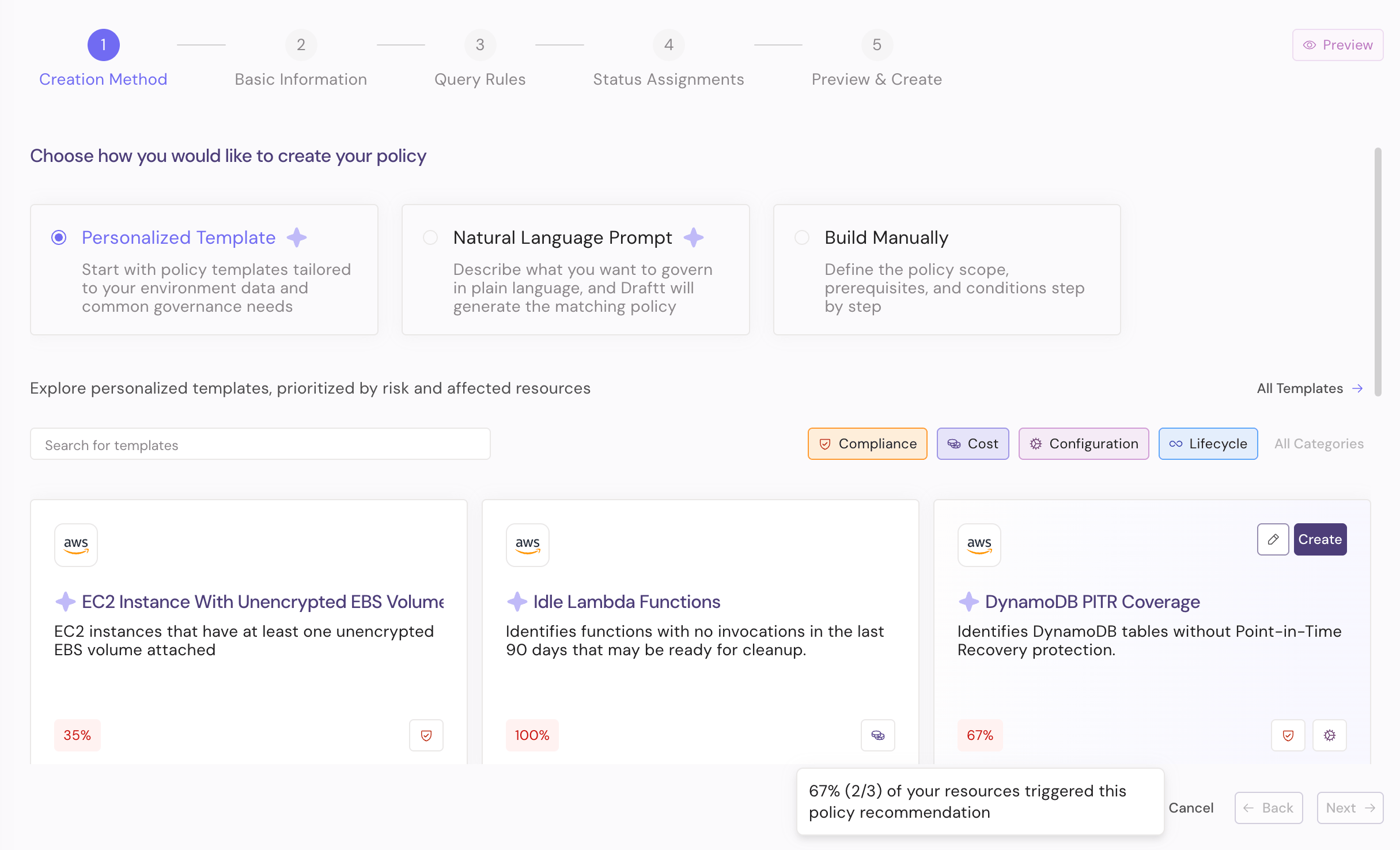
2. Add basic information
In Basic Information, select the resource type, then add the policy name and an optional description. Use a name that clearly communicates the standard being evaluated and the expected outcome.3. Define query rules
In Query Rules, define the resources the policy should evaluate. Use the available fields and operators to narrow the policy to the relevant resource type, technology, service, environment, region, or other inventory attributes. Leave the query empty when the policy should evaluate all resources of the selected type.4. Configure status assignments
In Status Assignments, define the prerequisites and conditions that assign each of the supported statuses: Compliant and Non-Compliant. Choose the default status that applies when no condition block matches. Conditions within a rule block use AND logic. Add multiple blocks to the same status when you need OR logic. Available fields include general resource properties and technology-specific attributes. Some fields may automatically apply the prerequisites required to evaluate them correctly.5. Preview and create
Use Preview & Create to review the policy scope, query rules, statuses, and assignment logic before creating the policy. Return to an earlier step if anything needs to be adjusted. Select Create when the configuration is ready. Draftt immediately starts evaluating matching resources. The policy displays Analyzing until the evaluation is complete, then changes to Active.Policy templates
Policy templates are pre-built governance policies for common infrastructure standards, security requirements, lifecycle controls, configuration checks, and cost optimization opportunities. Each template includes policy logic for a specific technology, service, or resource type, together with the conditions used to identify matching resources. You can use the proposed configuration as-is or customize it during the guided creation flow. Templates are available by selecting Personalized Template in the Creation Method step.Personalized Template
The Personalized Template view surfaces templates relevant to your connected environment. Recommendations are prioritized using risk and the number of affected resources, helping you focus on policy opportunities with the greatest current impact. Each recommendation shows the percentage of matching resources that triggered it. Use this information to understand the recommendation’s reach before creating the policy.Browse all templates
Select All Templates to explore the complete template catalog. Search for a specific template or filter the catalog by governance category:
A template can belong to more than one category when it supports multiple governance use cases.
Where policies appear
Once active, policy data is available across Draftt:- Policies: View policies, configuration details, status breakdowns, and the latest evaluation time. You can also trigger a new evaluation.
- Dashboard: Select a policy to view its status breakdown over time and track governance trends alongside lifecycle trends.
- Inventory: Filter resources by policy and review the status assigned to each matching resource.
Policy evaluation details (Early Access)
Policy Evaluation Details explains which rule blocks and conditions caused a resource to receive its current status. This information is available when inspecting individual policy results.Policy API (Early Access)
The Policy API supports creating, editing, and evaluating policies programmatically. Policy management is also available through the Draftt UI.Notifications (Early Access)
Notifications support triggering an alert when a resource enters a specific policy status. Alerts can be routed to Slack, email, or ticketing integrations based on status transitions.Next steps
- Review the Tech Debt Inventory to understand which resources your policies can evaluate.
- Connect Integrations to route policy violations to your ticketing and collaboration tools.