

Draftt’s access is read-only. It signs in and reads the host asset list. It never changes anything in Qualys.
Prerequisites
- A Qualys subscription with Global AssetView (GAV) or CyberSecurity Asset Management (CSAM). Qualys returns operating system lifecycle data only for subscriptions with CSAM. Without CSAM, Draftt still reads the rest of the host data.
- Hosts that report to Qualys, for example through the Qualys Cloud Agent.
- A Qualys Manager, or another Qualys user who can create users and edit their permissions.
- A Draftt user with the Developer or Admin role, and access to Integrations > Qualys.
If your Qualys subscription allows connections only from listed IP addresses, contact Draftt to get Draftt’s outbound IP addresses and add them to the allowed list in Qualys.
Qualys is enabled per Draftt account. If you do not see the Qualys card on the Integrations page, contact Draftt.
Setup
1
Create a dedicated Qualys user
Draftt signs in with the username and password of a Qualys user. Create a user that only Draftt uses, so that you can scope and rotate it without affecting anyone else.
- In Qualys, create a new user for Draftt.
- Keep SAML SSO turned off for this user. The Qualys API does not accept SSO sign-in, so a user with SSO enabled cannot connect.
- Give the user the Global AssetView / CyberSecurity Asset Management module.
- Give the user API access. For a user that is not a Manager, Qualys requires two settings:
- In the Administration module, open the user’s Quick Actions, go to Roles and Scopes, and select API Access.
- In the VMDR module, open the same user’s Quick Actions and, under User Role, select API.
- Check the user’s scope. Draftt sees only the assets that this user can see in Qualys. If you limit the user to some asset tags, Draftt reads only those hosts.
2
Find your Qualys platform
Each Qualys subscription lives on one platform, and each platform has its own API gateway URL. The address you use to sign in to Qualys tells you which platform is yours. For example,
https://qualysguard.qg2.apps.qualys.eu is the EU2 platform. Qualys lists all platforms and their URLs on its platform identification page.If your platform is not in Draftt’s list (for example GOV1 or a Qualys private platform), choose Other in the next step and enter your API gateway URL. Use the API gateway URL from the Qualys page, not the API server URL.3
Connect in Draftt
-
In Draftt, go to Integrations and open the Qualys card.
- Enter an Integration Name of at least 3 characters.
-
In Qualys Platform, choose your platform. For Other, enter the API Gateway URL. It must start with
https://.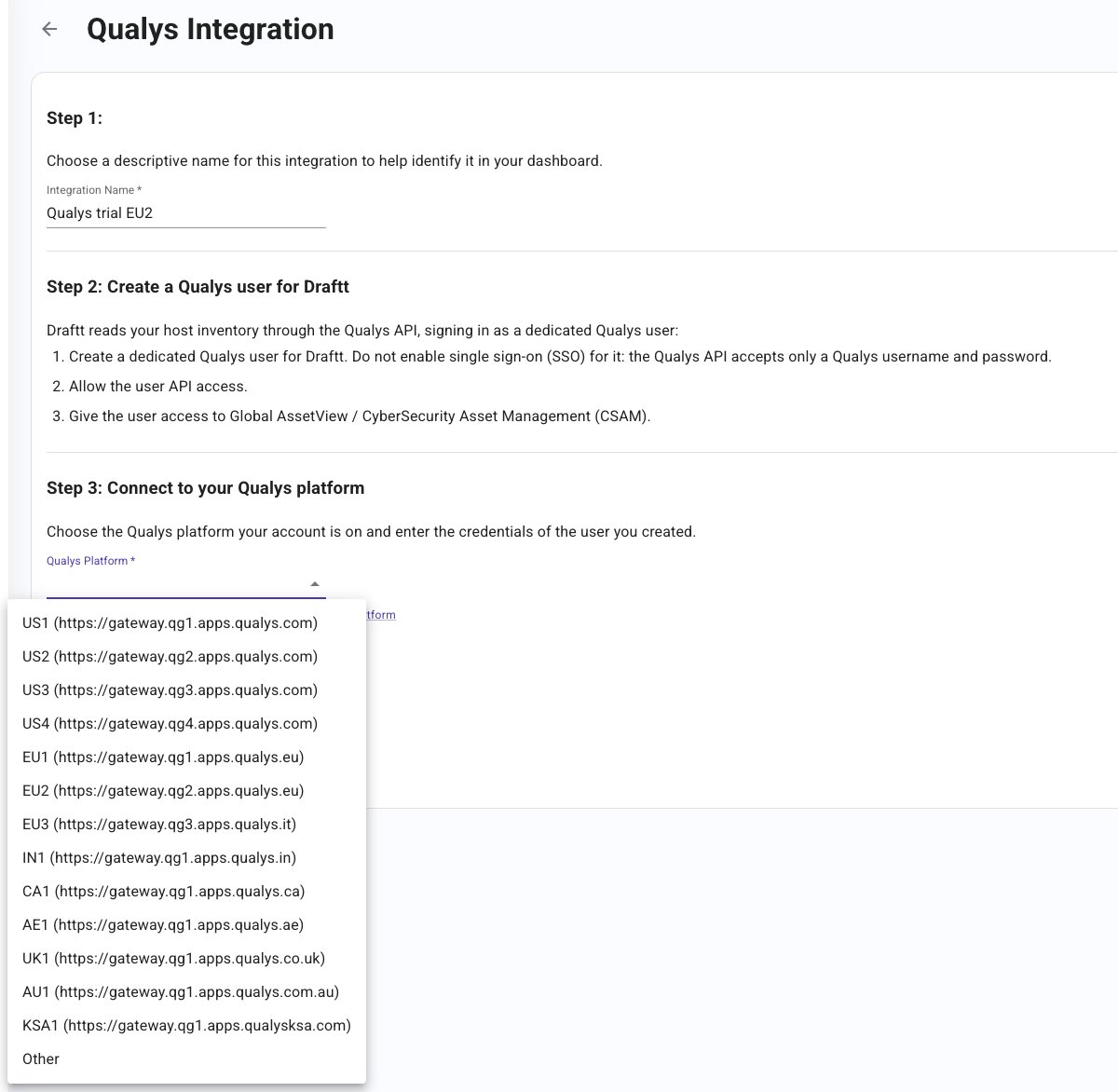
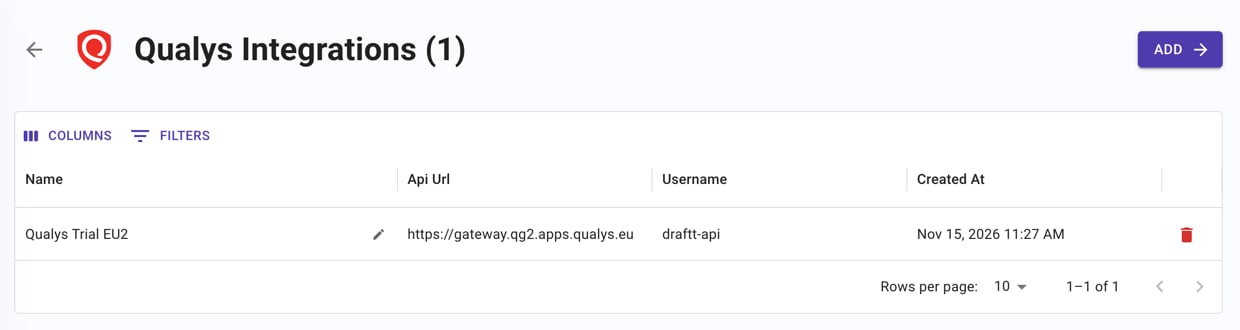
- Enter the Username and Password of the Qualys user you created.
- Click Create Integration.
What Draftt reads
Draftt reads the host asset list of Global AssetView / CSAM. For each host it keeps:- Identity: DNS name, IP address, Qualys asset ID and UUID, agent ID. The asset name becomes the name of a standalone host.
- Operating system: full name, version, architecture, and the Qualys lifecycle stage with end-of-life and end-of-support dates (CSAM only).
- Installed software: name, publisher, version, type and install date, and the Qualys lifecycle stage with end-of-life and end-of-support dates (CSAM only). Operating system packages, libraries and utilities that Qualys marks as ignored are left out.
- Hardware: manufacturer, model, serial number, CPU count, total memory, and volumes with their size and free space.
- Agent and scan status: tracking method, agent version, last agent check-in, last scan, last boot.
- Cloud identity: provider, instance ID, region and account ID, when Qualys knows that the host is a cloud instance.
How Qualys hosts appear in Draftt
Draftt matches each Qualys host to your cloud inventory by its cloud instance ID.- Hosts that match a cloud component. When Qualys reports an AWS EC2, Azure VM or GCP Compute Engine instance ID, and Draftt already has that component from a cloud integration, Draftt adds the Qualys data to the existing resource. No second resource is created.
- Standalone hosts. Every other host (on-premises servers, workstations, and cloud instances from accounts that are not connected to Draftt) becomes its own resource with the technology Qualys. Its type follows the operating system that Qualys identified, for example Qualys - Ubuntu or Qualys - Windows Server, and its version is the operating system release, for example
22.04orWindows Server 2019. If you connect the cloud account of a standalone host later, Draftt adds the Qualys data to the cloud component and removes the standalone resource at the next scan. Until then you can see both.
Refresh timing
Draftt reads Qualys on every scan cycle and once right after you create the integration. See scan frequency.Troubleshooting
Failed to validate Qualys integration
Draftt validates the connection when you create the integration. All validation failures show the same message, so check these causes one by one:- The username or password is wrong, or the password has expired.
- The platform is wrong. A Qualys user exists on one platform only, so the right credentials fail on any other platform.
- The user has SAML SSO enabled. Turn SSO off for this user in Qualys.
- The user has no API access. Enable API Access in the Administration module and API in the VMDR user role.
- The user does not have the Global AssetView / CSAM module.
- The Qualys account is locked after too many failed sign-in attempts. A Manager or Unit Manager must reactivate it in Qualys.
- Your Qualys subscription allows connections only from listed IP addresses, and Draftt’s addresses are not on the list.
- For Other: the URL is not your API gateway URL, or Draftt cannot reach it.